
How to Login to PCOGS website
Instructions to Log In to the PCOGS Website for the First Time
Logging into the PCOGS (Pacific Coast Obstetrical and Gynecological Society) website for the first time is a straightforward process. Follow these steps to get started:
-
Visit the Website:
-
Go to the PCOGS website at www.pcogs.com.
-
-
Locate the Login Section:
-
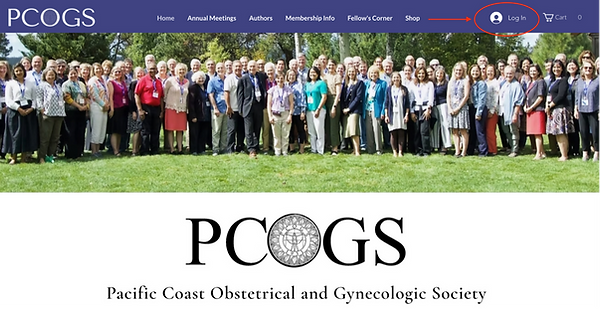
Look for the login prompt on the homepage. This is found at the top right corner of the page.
-


-
Enter Your Credentials:
-
If you are logging in to the website for the first time, you will need to follow the Sign Up link.
-
Enter your information, including the email address you want to use to log in to the account.
-
Note – you will have to enable pop-ups to log into the website.
-
-
Verify your email address
-
In order to improve site security, you will be asked to verify your email address. Once you click Submit on the Sign Up request, you will receive an email from PCOGS Admin (pcogsesquivias@wixsiteautomations.com) with a confirmation code. Enter this code in the dialogue box as shown to the left.
-
-
Complete the Login:
-
Your request for site membership will be received.
-
Please allow up to 7 days for website administrators to approve the request.
-
Once approved, you’ll receive an email from PCOGS Admin indicating your request for website membership is approved as shown to the right.
Explore the Website:
-
Once logged in, you can explore all the resources and information available to members.
-
ONLY PCOGS Fellows have access to pages in the Fellows Corner of the website.
-
Dues payment is required to gain access to the Annual Meeting Registration page.
-
Please take a moment to update your information after you log in, by visiting your profile, and updating your account as shown below.
If you encounter any issues during the login process, please contact us!


